> ## Documentation Index
> Fetch the complete documentation index at: https://docs.palantrix.com/llms.txt
> Use this file to discover all available pages before exploring further.
# Hire Hub
> Manage your interactions with companies, including emails and follow up interviews & company invites, all in one place.
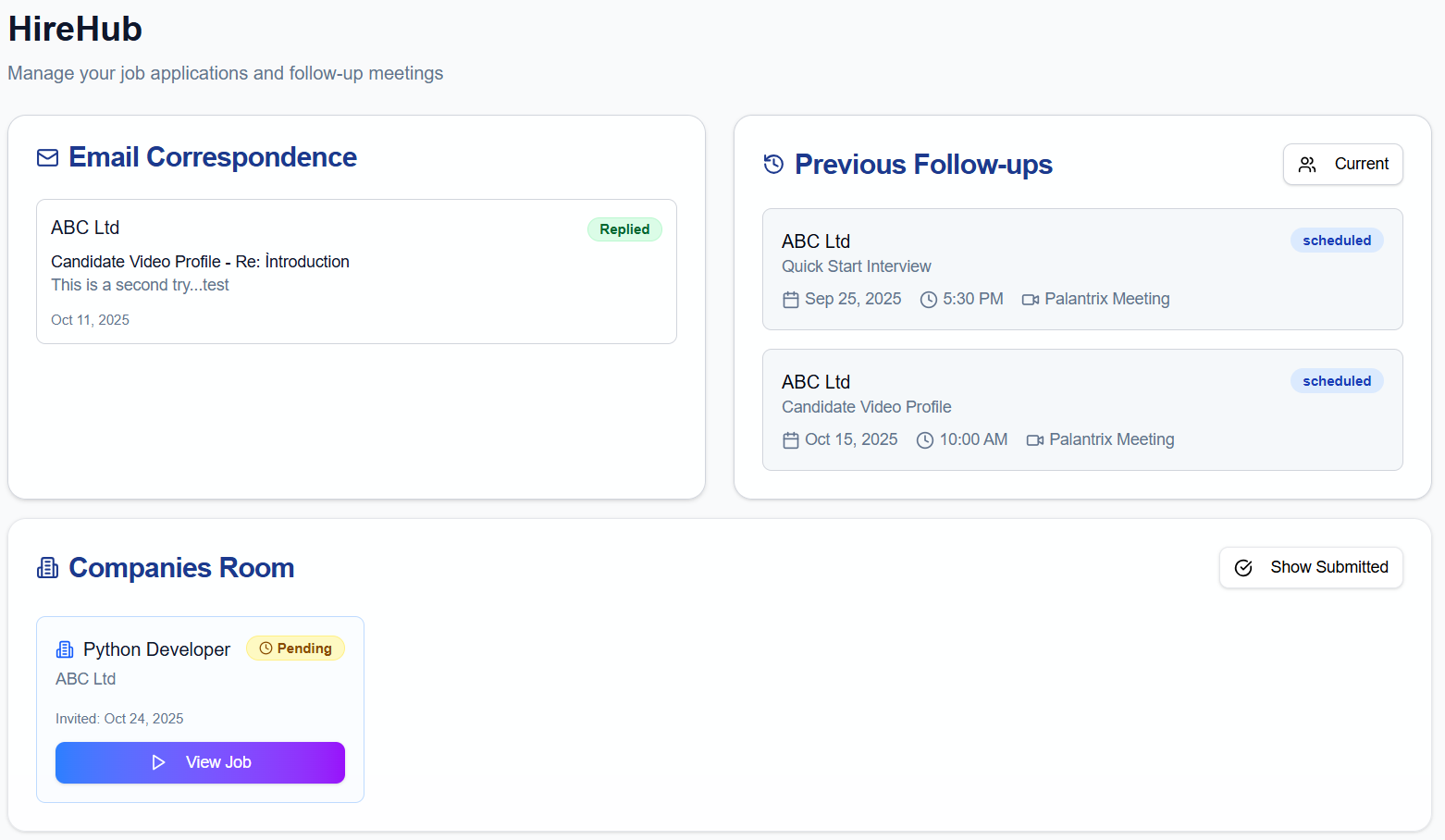 The HIreHub is your go to place to manage interactions with prospective employers.
* Manage, view and reply to email communications
* View and Join virtual follow-up interviews
* View Classic Job invites and submit your interview responses
### Manage Interactions with Companies
* View and respond to emails from companies.
* Palantrix will send you an email to your registered email address when any new communications have been sent. Log in to Palantrix at [my.palantrix.com](http://my.palantrix.com) and navigate to the HireHub link in the left navigation panel.
* Click on the Email card to view and reply to that email.
The HIreHub is your go to place to manage interactions with prospective employers.
* Manage, view and reply to email communications
* View and Join virtual follow-up interviews
* View Classic Job invites and submit your interview responses
### Manage Interactions with Companies
* View and respond to emails from companies.
* Palantrix will send you an email to your registered email address when any new communications have been sent. Log in to Palantrix at [my.palantrix.com](http://my.palantrix.com) and navigate to the HireHub link in the left navigation panel.
* Click on the Email card to view and reply to that email.
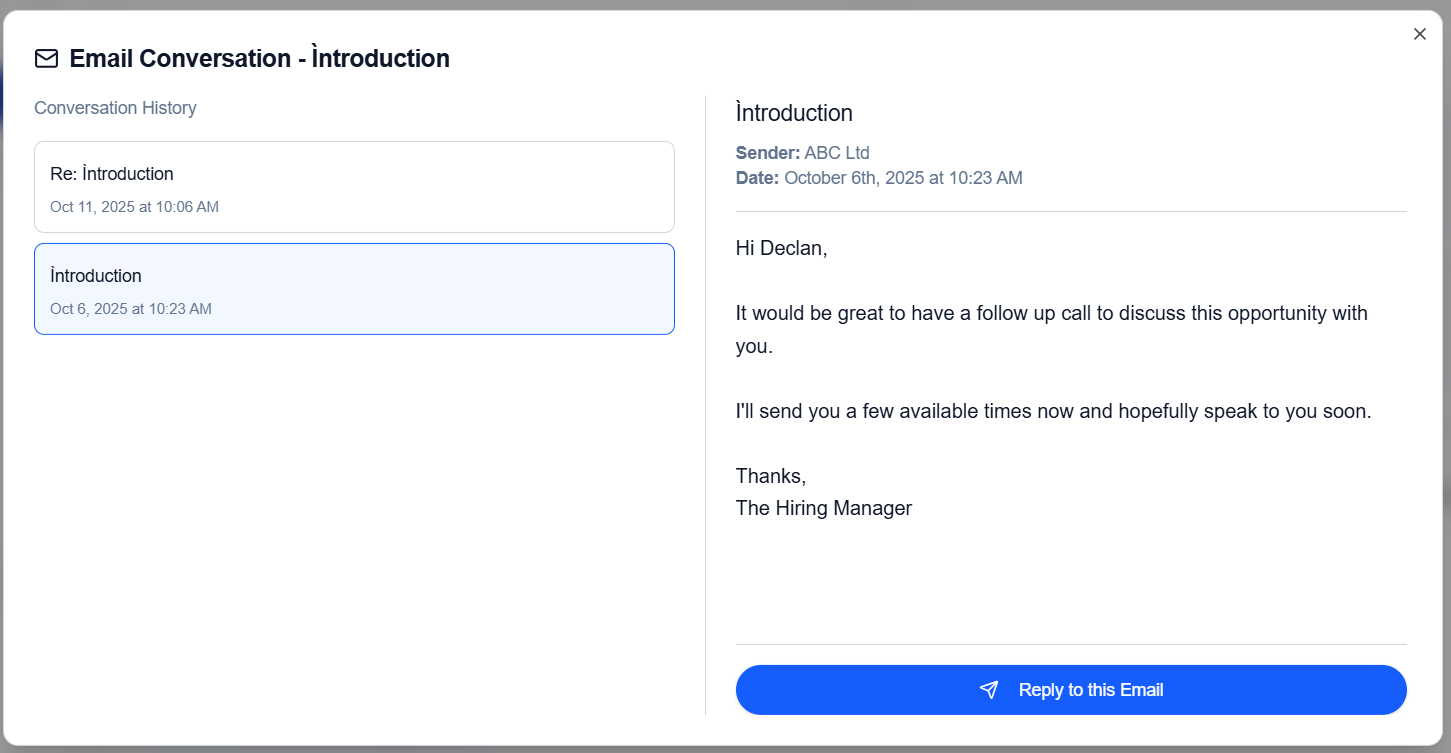 * View any follow-up invites that have been sent to you.
* A follow up invite is a link to a virtual video call with a human recruiter from the company.
* Clicking on the card in the Follow Up section will present a summary of the invite and a button to start the meeting at the designated time.
* View any follow-up invites that have been sent to you.
* A follow up invite is a link to a virtual video call with a human recruiter from the company.
* Clicking on the card in the Follow Up section will present a summary of the invite and a button to start the meeting at the designated time.
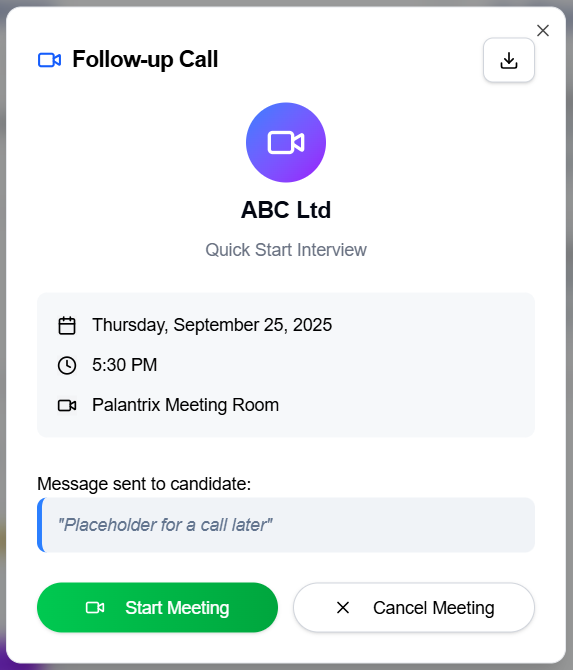 * The Companies Room is a place where companies have invited you to a further interview, usually a Palantrix Classic Job Post, having viewed your short video profile or if you responded to a Palantrix Job Short from that company.
* Palantrix will send you an email to your registered email address if you receive an invite.
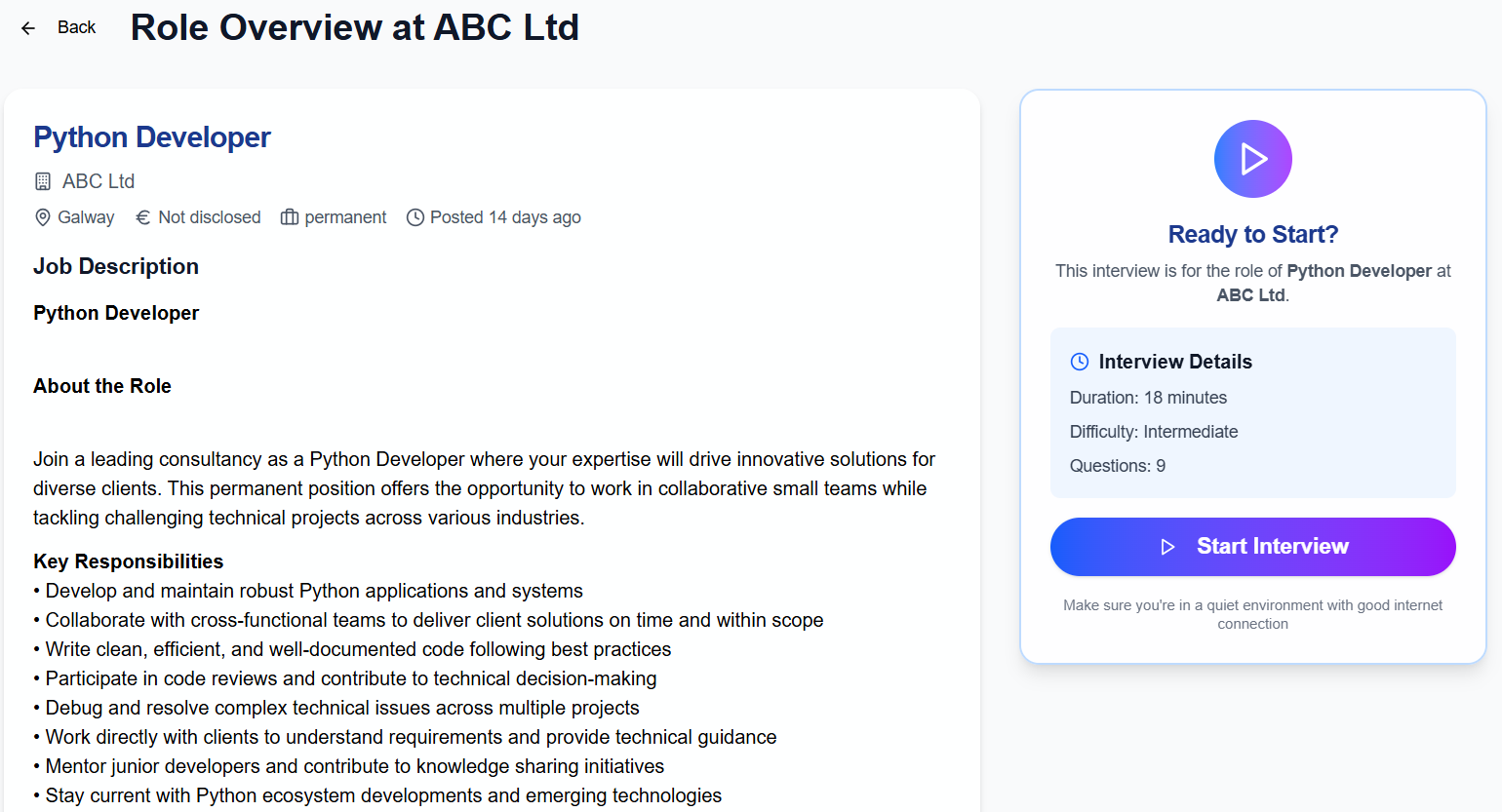
* Click on the View Job to see the full job specification and then Start teh Interview when you are ready to respond.
* The Companies Room is a place where companies have invited you to a further interview, usually a Palantrix Classic Job Post, having viewed your short video profile or if you responded to a Palantrix Job Short from that company.
* Palantrix will send you an email to your registered email address if you receive an invite.
* Click on the View Job to see the full job specification and then Start teh Interview when you are ready to respond.
 ### Quick Tips
* Navigate to the HireHub to manage your further interactions with companies.
* Maintain a professional communication manner to enhance your chances of progressing through the recruitment process.
* Provide detailed but concise responses to any questions asked from the companies seeking further information about your experience.
Always remember never provide personal information like PPSN (social security number), bank details or address details to a company at this stage in the process. They should not be used to form a basis for a hiring decision, so just apply a common sense approach.
Palantrix will \*\*never ask \*\*for this type of Personal Identifiable Information (PII).
### Quick Tips
* Navigate to the HireHub to manage your further interactions with companies.
* Maintain a professional communication manner to enhance your chances of progressing through the recruitment process.
* Provide detailed but concise responses to any questions asked from the companies seeking further information about your experience.
Always remember never provide personal information like PPSN (social security number), bank details or address details to a company at this stage in the process. They should not be used to form a basis for a hiring decision, so just apply a common sense approach.
Palantrix will \*\*never ask \*\*for this type of Personal Identifiable Information (PII).