> ## Documentation Index
> Fetch the complete documentation index at: https://docs.palantrix.com/llms.txt
> Use this file to discover all available pages before exploring further.
# Palantrix Recruitment Pipeline
> The Palantrix recruitment pipeline is a way to streamline your hiring pipeline starting with a short introductory video profile and then moving onto a classic style interview, all backed with AI analysis, allowing you to make informed hiring decisions.
### Pipeline Structure
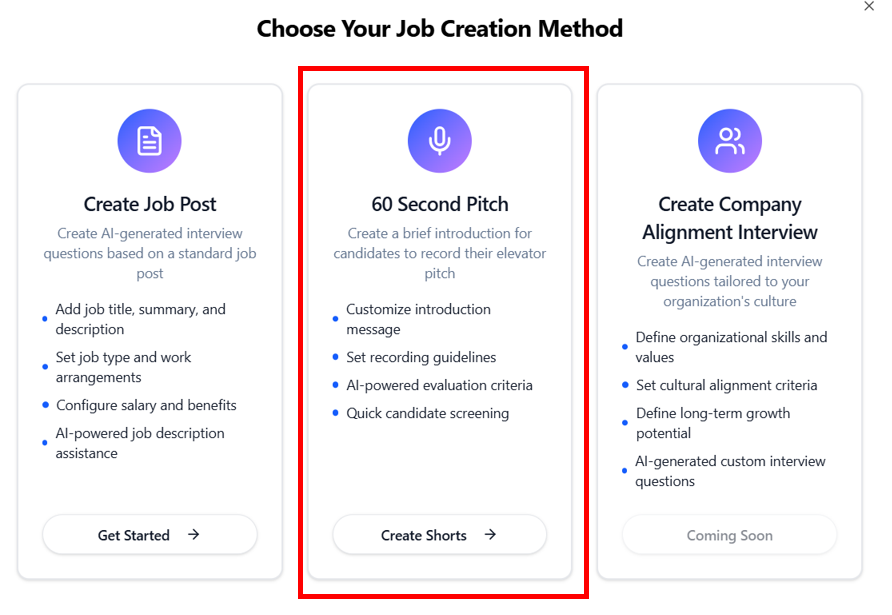 * Start by Clicking 'Post a New Job' button.
* Select 60 Second Pitch *****(in reality it will be requesting a 2-4 min introducatory video from candidates).*****
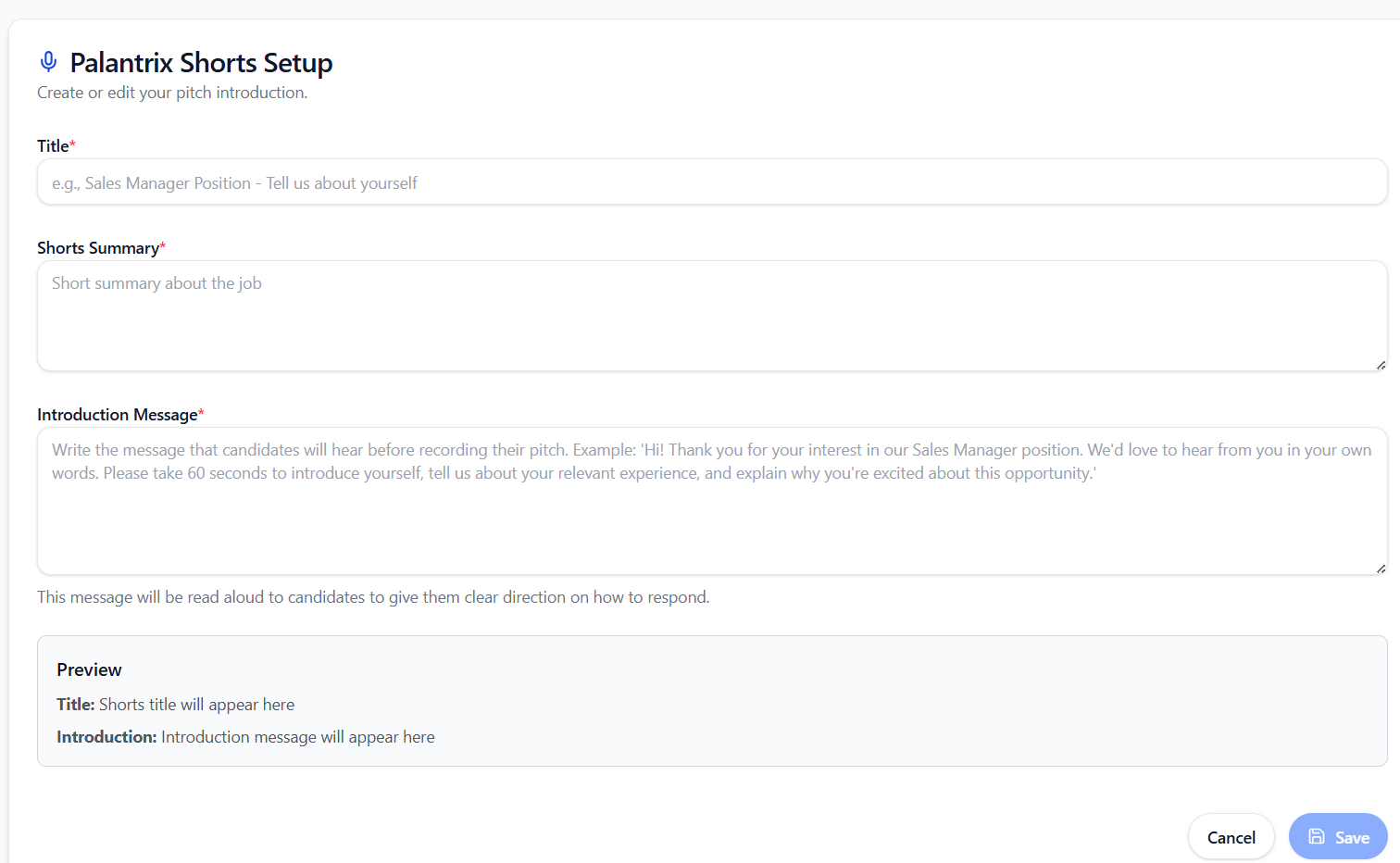
* Enter in the details, including:
* Job Title.
* A brief Sumamry of the Job - sell your company and the job.
* An introductory message that will be played to candidates before the start the short profile video.
**Example:** *"Thank you for your interest in our Sales Manager role. Please record a short video introducing yourself. Tell us a brief summary of your experience and why this roles excites you. Best of luck!"*
* Start by Clicking 'Post a New Job' button.
* Select 60 Second Pitch *****(in reality it will be requesting a 2-4 min introducatory video from candidates).*****
* Enter in the details, including:
* Job Title.
* A brief Sumamry of the Job - sell your company and the job.
* An introductory message that will be played to candidates before the start the short profile video.
**Example:** *"Thank you for your interest in our Sales Manager role. Please record a short video introducing yourself. Tell us a brief summary of your experience and why this roles excites you. Best of luck!"*
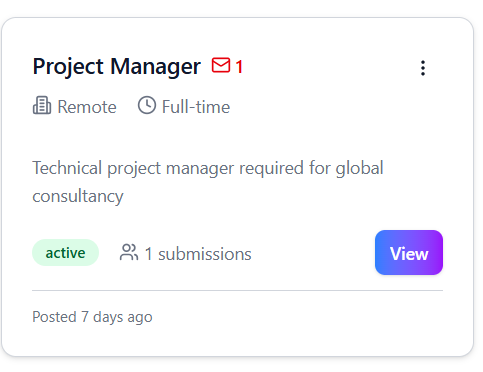 * Evaluate the responses which can be viewed by clicking on the Jobs link in the left navigation panel and selecting the Job in question.
* View all the candidates submissions and click on each candidate to view their AI summary and video submission.
* Evaluate the responses which can be viewed by clicking on the Jobs link in the left navigation panel and selecting the Job in question.
* View all the candidates submissions and click on each candidate to view their AI summary and video submission.
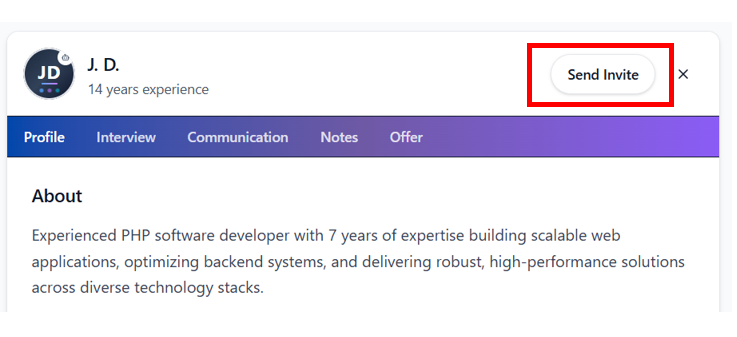 * To invite a candidate to the next stage i.e. a Classic style question based interview click on the Send Invite button. Choose the interview you want the candidate to respond to and click on Send Invite.
In order to Send an Invite you must have already created a Classic style Job Post - which is labeled 'Create Job Post' on the 'Choose Your Job Creation Method' modal.
* The candidate will receive an invite to respond to the classic question based interview.
* View all submissions for these invite only classic job posts.
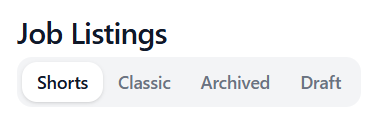
* Toggle between your Shorts and Classic job post in the Jobs page.
* To invite a candidate to the next stage i.e. a Classic style question based interview click on the Send Invite button. Choose the interview you want the candidate to respond to and click on Send Invite.
In order to Send an Invite you must have already created a Classic style Job Post - which is labeled 'Create Job Post' on the 'Choose Your Job Creation Method' modal.
* The candidate will receive an invite to respond to the classic question based interview.
* View all submissions for these invite only classic job posts.
* Toggle between your Shorts and Classic job post in the Jobs page.
 ### Quick Tips
* Start with a Palantrix Short Job Post to get a quick introductory vidoe submission from the candidate.
* Move your selected candidates onto a classic interview stage before selecting your preferred candidates for a follow up interview.
Short Video profiles are a great way to get an early view of the candidate and greatly enhance the traditional CV submission.
### Quick Tips
* Start with a Palantrix Short Job Post to get a quick introductory vidoe submission from the candidate.
* Move your selected candidates onto a classic interview stage before selecting your preferred candidates for a follow up interview.
Short Video profiles are a great way to get an early view of the candidate and greatly enhance the traditional CV submission.